A display in Airport CX has two independent levels of "state," and it helps to keep them apart:
The display state decides whether the screen runs its normal content at all, or is overridden.
The template state decides which layout the running content shows right now.
This tutorial covers both, starting with the display state — because it needs no scripting — and then moving up to the template state and the script that drives it.
Display states — the top-level switch
Most of the time a display sits in its normal state, running the content you assigned to it: a FIDS board, a gate screen, an advertising template. The display state answers a different question from anything inside that content: should normal content run, or should something take over?

Normal is the default. Your assigned template runs here, and everything else in these tutorials happens inside it - element scripts, template states etc.
Scenario lets an operator take the display over for a pre-defined situation — a ground stop, an evacuation, an irregular-ops content set — activated manually or through an API call, across many displays at once. Scenarios are able to orchestrate a whole situation, also together with voice announcements, see Scenarios introduction.
Blank shows a deliberately minimal screen — a small logo, default content, or nothing at all — instead of turning the display off completely. It's a lightweight way to save power or park a screen without cutting its supply. For the full setup and the ways to switch a display in and out of blank, see Display BLANK content.
Take away
The display state is the outermost control. No scripting is involved — you assign content and switch states from the display configuration.
Template states — a deck of layouts
Once a display is running normal content, the template takes over the question of what to show.
A content template is not just a single fixed layout. It holds several states, and each state is its own complete design — much like slides in a presentation. At any moment the screen shows exactly one of them, and it rolls from one to the next as the situation changes.
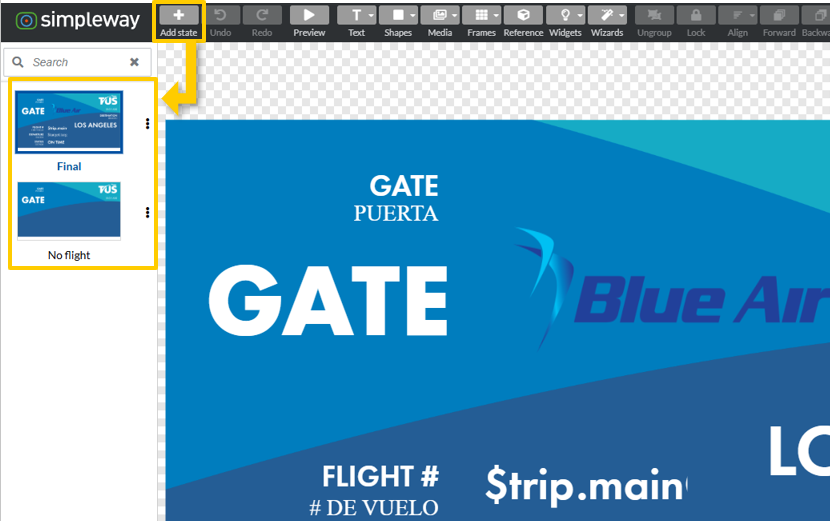
A gate screen is the clearest example. Its template might hold five states:
No flight assigned — an idle or branding layout
Flight assigned — flight information, pre-boarding
Now boarding — the boarding-call layout
Boarding by group — row or zone sequencing
Departed — clears the flight and returns to idle
Each of these is a full design you build in the Designer. What makes the screen move between them automatically is the state script.
The state script — choosing the layout
A state script is a short piece of JavaScript attached to the template. It reads the live data and returns the name of the state that should be showing. It runs again whenever the data changes, so the layout always matches the flight's real situation.
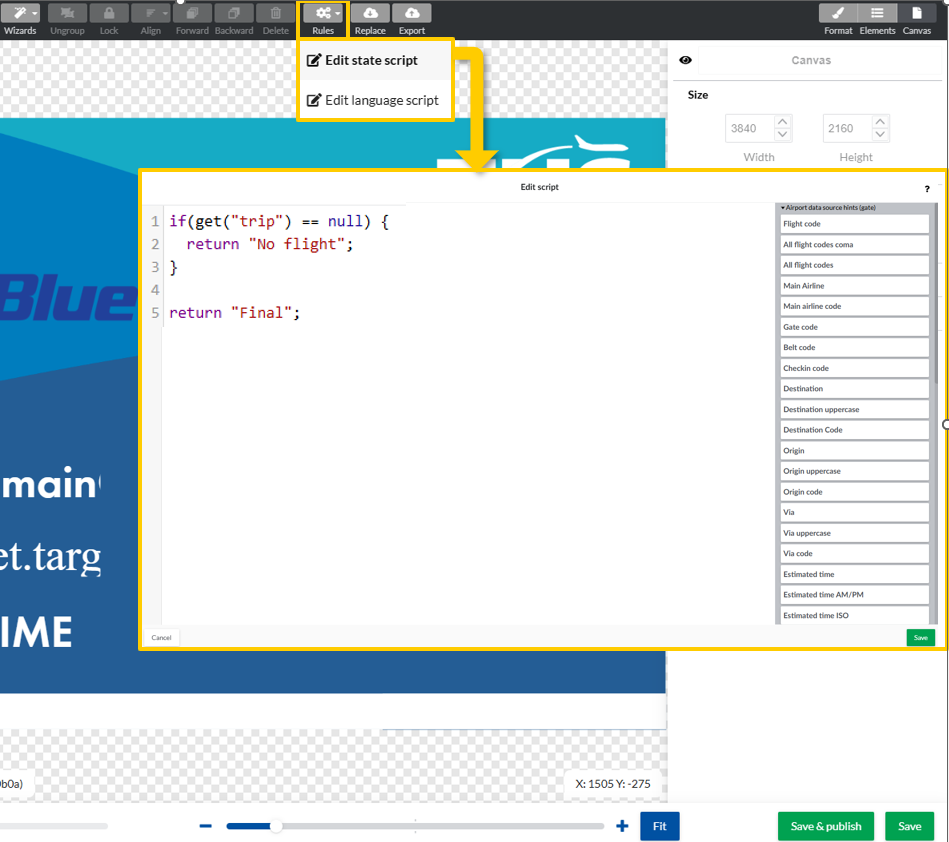
You don't need to memorize the syntax to understand it. The script maps a data condition to a state name:
if the flight status is boarding, show the boarding state;
if there's no flight, show the idle state; and so on.
When no rule matches, it returns a default state. That mapping — data in, layout out — is the whole idea.
The template's data source
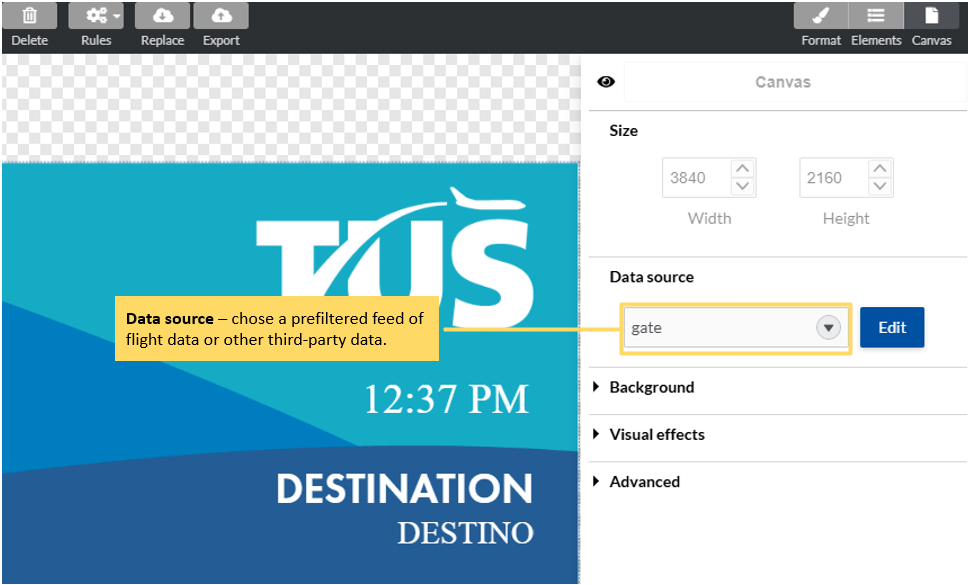
The data source (or any third party source) a template works with is set on the template as a whole. You assign a Trip / Flight Window — a filtered, sorted view over the flight feed — and every state in the template shares that same flight context.
Where to continue
When you want to change one component on the canvas, you do not need to switch the whole layout, dive into the next tutorial ELEMENTS and element scripts
Where the flight data and triggers come from read Trip WINDOWS & Business RULES