Airport CX gives your displays a lot of decision-making power and automations. A screen can change what it shows based on:
live flight data - data-based,
the time of day - time-based, or
an operator's command - manual.
That system logic is spread across several tools, and each one owns a different job.
This tutorial explains how those tools fit together, then points you to the right tutorial for whatever you're trying to do.
How the pieces fit together
The tools sit in layers.
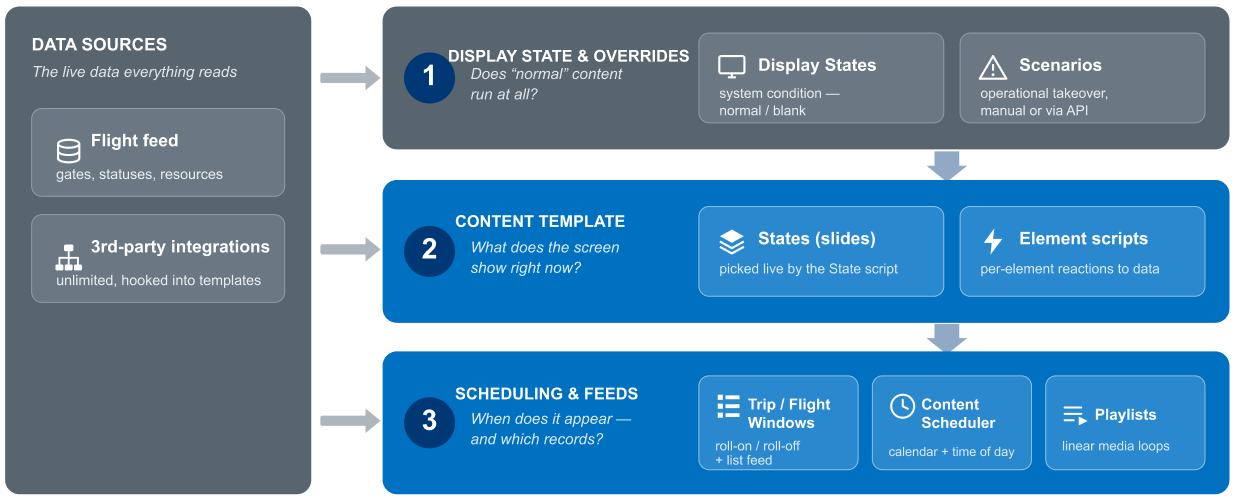
Data sources are the foundation — the live data every screen reads on each refresh. This includes the flight feed (exposed through Trip /Flight Windows), any third-party integration (weather, baggage, etc.), and per-display configuration and metadata.
Scheduling & feeds decide when content appears.
Flight-driven timing comes from Trip / Flight Windows.
Time-of-day and calendar-driven media comes from the Content Scheduler and Playlists.
The content template decides what the screen shows. A template holds several layouts/states, and small scripts choose between them and fine-tune individual elements.
Display states and overrides sit on top and can pre-empt everything below — either automatically when the feed goes down or on command when a Scenario is activated.
The engine underneath
When a fixed set of options isn't enough, the logic is written in script. Scripts read live data through SwEL (Simpleway Expression Language), a small query language with type-aware helpers for things like date formatting, working across lists of records, and localization.
State scripts and element scripts are plain JavaScript built on top of SwEL. You don't need to script to use most of the display module — but when you do, this is what's under the hood.
Pick your path
Now that you have the map, jump to the tool you need. Find the behavior you're configuring on the left, and go to the tutorial on the right. Every tutorial links back here, so you can always return and take a different path.
What you want to control | Tutorial which explains the behaviour |
When a flight appears on / clears a gate screen | |
Which layout the screen shows right now | |
Conditional formatting (e.g. cancelled in red) | |
How a single component reacts to data | |
Filtering and sorting the FIDS flight list | |
Manual or API-triggered takeovers (e.g. emergencies) | |
Time-of-day media and marketing loops | |
Switch to blank screen |