Description
After login into the nnounce configuration UI, establish a connection between your new micnode2 station and your network. Configure the LAN A and LAN B ports in the Interfaces section.
Choose between manual and auto mode setting:
Manual - user enters IP Address, Net Mask and default Gateway.
Auto - DHCP server needs to be available to obtain network settings automatically.
Off mode turns the port off.
IMPORTANT: You will need the device's IP address, MAC address from your device which you find on the rear panel.
Note: Navigate backwards or cancel your steps with the Back function in your browser.
A. Navigate to the left-hand menu to the Interfaces section. B. see rear panel ports. |
|
| |
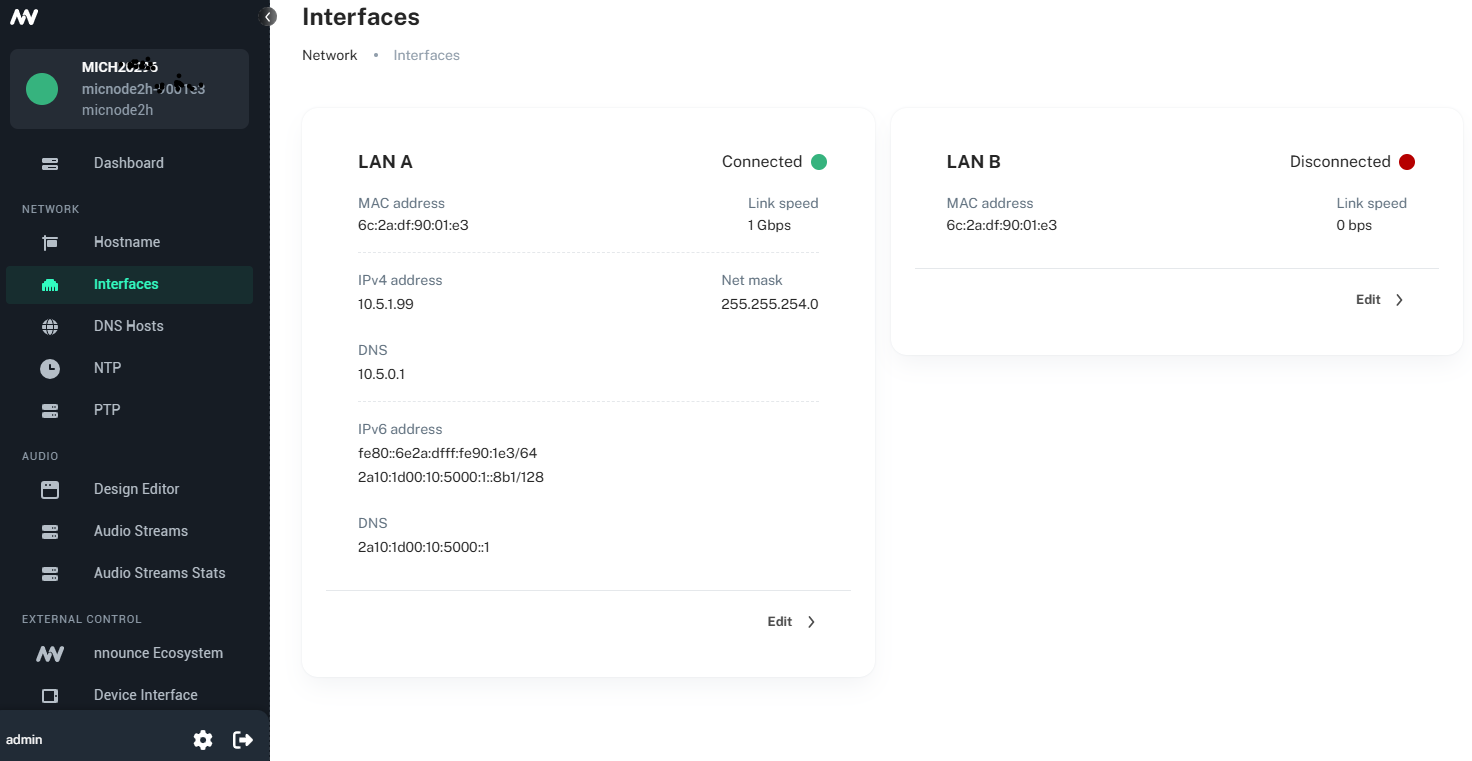
1. Manual mode
C. Fill in the fields:
|
|

2. Auto mode
D. Automatically obtain from DHCP server:
Click on the Save changes button to confirm the configuration. |
|
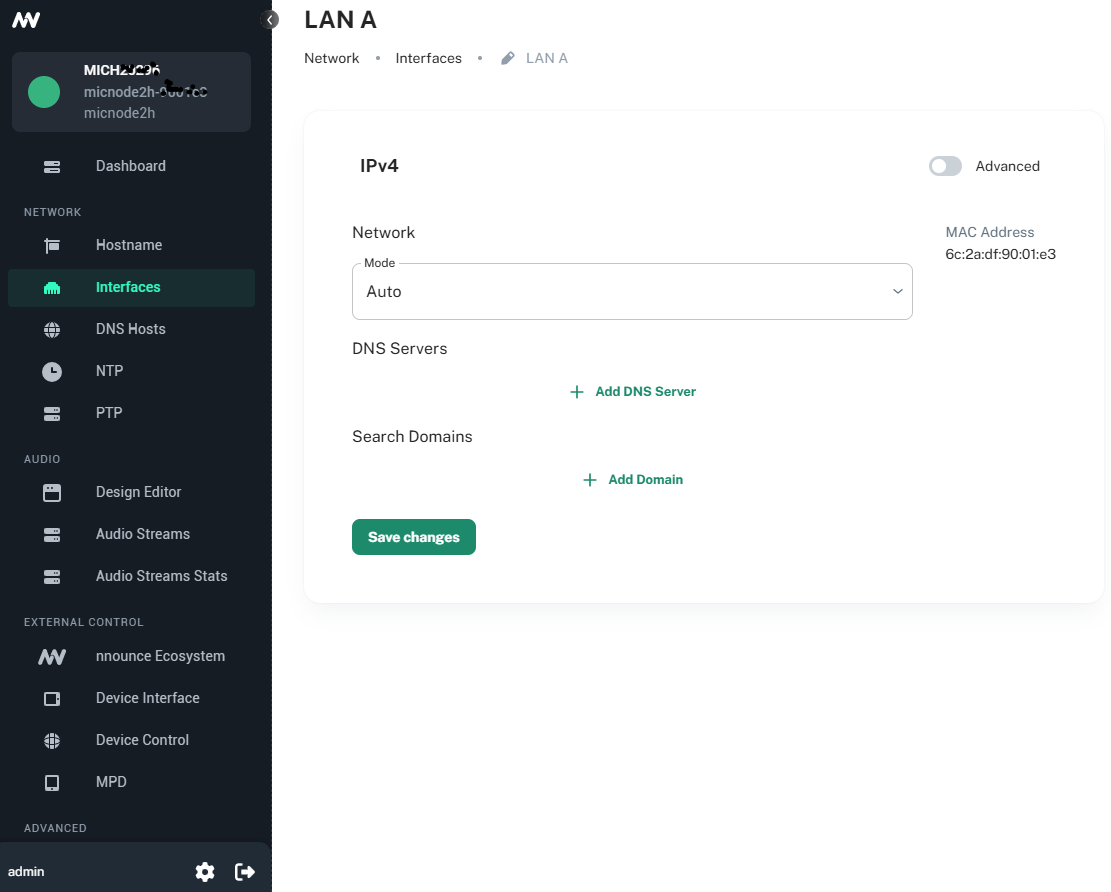
IMPORTANT: The option OFF disables the port.