Description
Once the network settings and configuration including zones are set in Q-SYS Designer, paging can be triggered with the PTT button.
Important
Which paging mode is used depends on Paging configuration of your micnode mini6 plugin in Q-SYS Designer.
Start call
1. Select on your micnode mini6 device the zone(s) for your announcement by pressing the corresponding zone button(s). The selected button/s will light up.
2. Start your announcement by pressing the Talk/Start button on the microphone side.
ACTION | STATUS & DESCRIPTION | OLED information | LED control |
|---|---|---|---|
No Zone selected | Please select zone No zone button is selected. |
| LED off |
Ready to page | List of selected zones is visible on the display At least one zone button selected and zones are available. NOTE: Zone with a filled-in rectangle is busy. |
| Yellow LED |
Busy | Busy At least one zone button selected and one zone at least is occupied |
| Red LED |
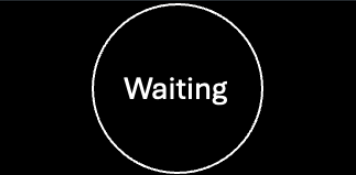
Starting PTT button – Waiting in Queue | Waiting At least one zone button is selected, PTT button is pressed but at least one zone is occupied by same or higher priority. |
| Yellow LED, fast blinking |
Talk - Ready | Live PTT button pressed and live call is in progress. |
| Green LED, slow blinking |
Stop call | Completed Let go the PTT button, the call is done. |
| Green LED, no blinking |
Stopped by higher priority | Interrupted Your call was interrupted by an other announcement with higher priority paged in the same zone. |
| Red LED, first 4times blinking and the busy zone |






Important
You can only have one announcement recorded in the queue. Before you start to record a second announcement to the occupied zone, your first announcement need to leave the announcement queue.