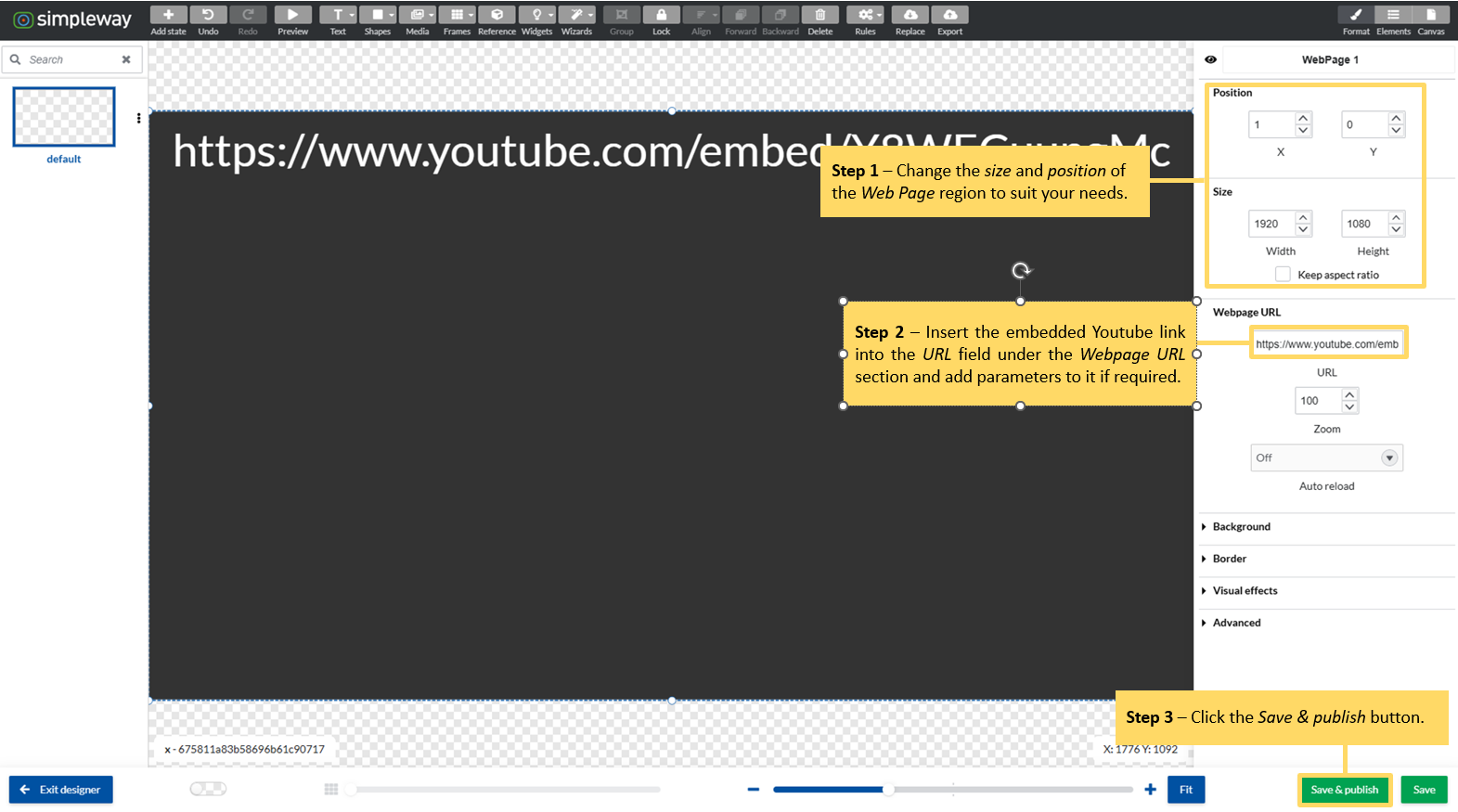
The Web Page widget lets you embed YouTube content in your display templates: single videos, playlists, or live streams. It is a quick way to put live video, company broadcasts, or promotional content on screen.
The process is short:
Embed your Youtube video/stream
Copy the video/stream URL for embedding without the html code
Paste the copied embedded link to the URL field of the Web page widget in template designer
Add parameters to the embedded link if required. Note: The first parameter is always added to the URL with "?" and each subsequent parameter is added with "&"
Save your template and assign it to displays.
In this tutorial we will use the embedded URL of our Simpleway content on Youtube with some added parameters as an example.
To see what our digital signage platform can do beyond template management, visit our digital signage page.
Topics covered:
Templates tab - Web page widget
TUTORIAL STEPS:
A) Embed Youtube video/stream Right-click the video/stream player window on Youtube webpage and select the Copy embed code option. |
|
B) Obtain URL
|
|
C) Create a template
|
|
D) Add a Web Page widget
|
|
E) Edit a Web Page widget
|
Note: The Auto reload drop box allows you to switch on and off the automatic reload of the webpage. When the Auto reload is switched on you can set the Reload rate (in seconds). URL examples: Use Playlist and Loop parameters to loop a video that is not part of the video playlist: Use List and Loop parameters to loop videos in the playlist:
|
| |
.JPG)
.JPG)
.JPG)
.JPG)