This tutorial shows how to reset your password from the Operations User Interface (OpsUI) login page if you can't remember it, and how to change your password when you need to. If your organization uses single sign-on instead, note that the system also supports integration with common SSO providers.
In this tutorial, we will show you how you can:
reset your password on the Operations User Interface (OpsUI) login page in case you cannot remeber it and also
change your password if required.
Topics covered:
Login page
Forgot password page - Set a new password page
Menu
User icon
TUTORIAL STEPS:
Option 1: Reset your password
After clicking on the link, you will be redirected to the "Forgot your password?" page. |
|
B) Forgot password page
Note: the email is checked, and if the check is successful, users will be notified that the recovery link has been sent, otherwise users will be notified that the entered email address is invalid. |
|
C) Open the password recovery email you received and click the link provided to set a new password. |
|
D) Set a new password page
|
|
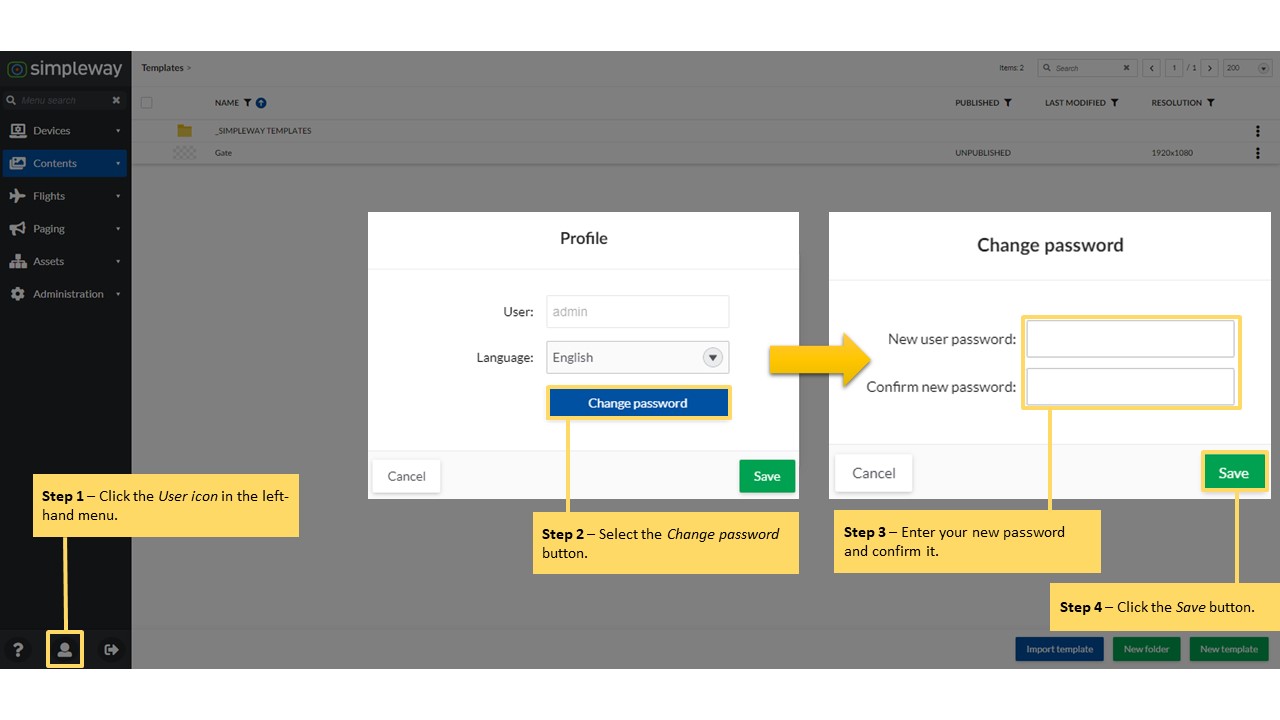
Option 2: Change your password
Your new password is set. |
|
.JPG)
.JPG)
.JPG)
.JPG)