Overview of operational changes and new features deriving from the software upgrade from version 7.15 to version 7.16. and patches
Features overview:
Zone management - tree picker for zone hierarchy
GateUI build optimization (tree-shaking)
Manually deleted flights
Impersonisation - super user can act as a different user to see its configuration
Prayer call - prayer times can be uploaded in CSV file
Tugman UI for multi-belt
Display improvements:
Direct access of assigned template to diplay,
Display and template match column,
Column width adjustments.
Audio improvements:
Live view of micnode2 in audio device detail
Queue item - Q-SYS integration - Show live call from VPS in Queue Tab
Audio bus - refurbish grouping layout
Queue items have improved multi-location support
Q-SYS integration compatibility improvements with version 10
Speech-to-text and visual paging in GateUI
RELEASE NOTES
1. Zone management
Zone management has been redesigned into a single tree-based view that replaces the separate Zones and Zone groups tabs. With the new structure, the users can see and understand the full zone hierarchy visually. It adds drag-and-drop organization, keyboard navigation, bulk actions, and built-in access management, while preserving existing capabilities like asset values, search, and device assignment.
See tutorial Zoning your audio devices
2. GateUI build optimization (tree-shaking)
GateUI now loads and runs noticeably faster. Tree-shaking now strips unused Ops dependencies from the build, so GateUI bundles only the TypeScript modules it actually needs. The smaller bundle builds on earlier loading-speed improvements.
3. Manually deleted flights
New feature to manage manually deleted flights, storing them on a separate tab and preventing automatic synchronization from data feed which might be helpful particularly in case of sudden events and the data feed is not up to date. This prevents the flight to be visible on the flight list displays but the flight might be restored by the administrator if needed.
In case you would like to know more about this feature, please contact us.
4. Impersonation - super user can act as a different user to see its configuration
Super users can temporarily log in as another user, taking on that user's exact UI configuration. While impersonating, it stays clearly visible that the super user is acting as a different user. This makes it much easier to verify that a user's permission and group setup behaves as intended.
In case you would like to know more about this feature, please contact us.
5. Prayer call
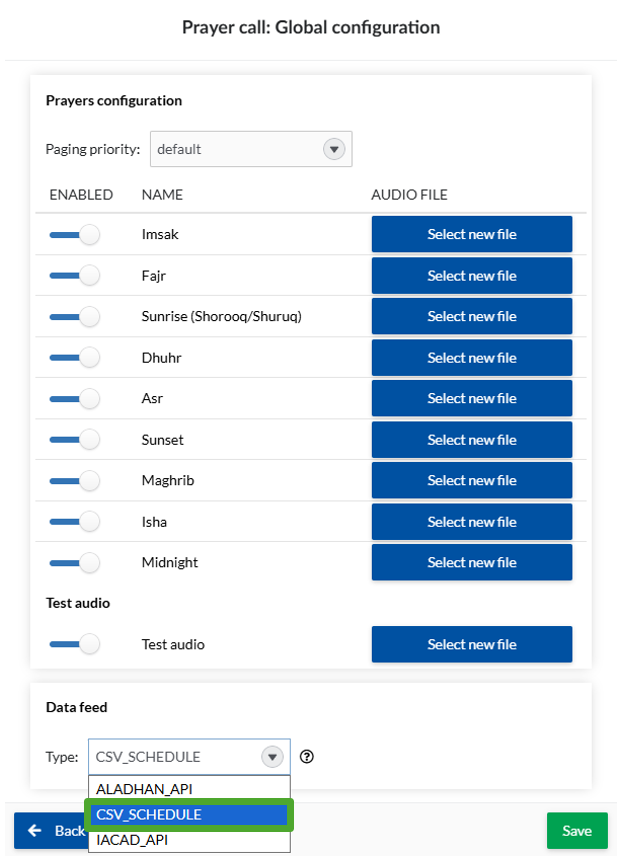
Prayer call schedules can now be imported via CSV file as an alternative to the available API integrations. It is a further option to set the exact prayer times.
See tutorial Prayer call schedules
6. Tugman UI for multi-belt
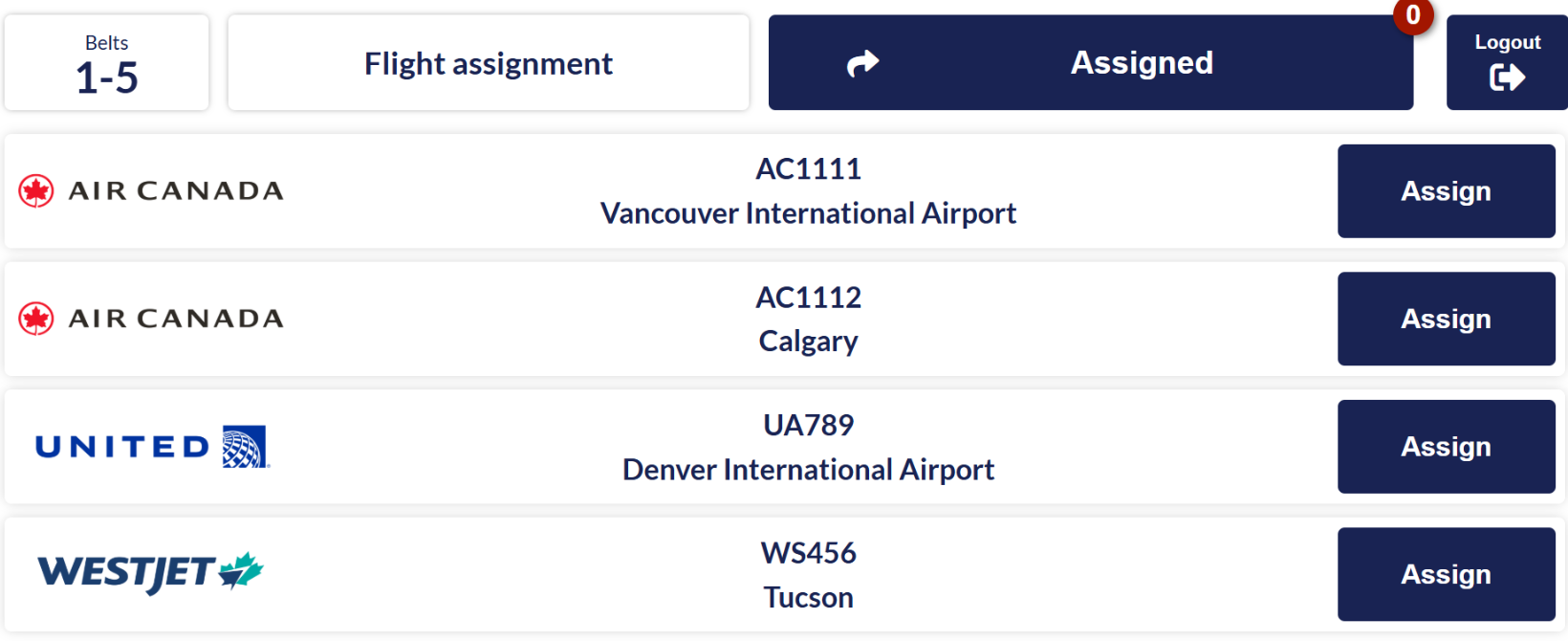
TugmanUI supports managing several baggage belts from a single UI client. Operators can configure all belts (or a defined subset) into one client, and users can assign or switch the selected belt as well as assign or unassign flights per belt.
See tutorial TugmanUI - baggage handling process
7. Display improvements:
Direct access of assigned template to display
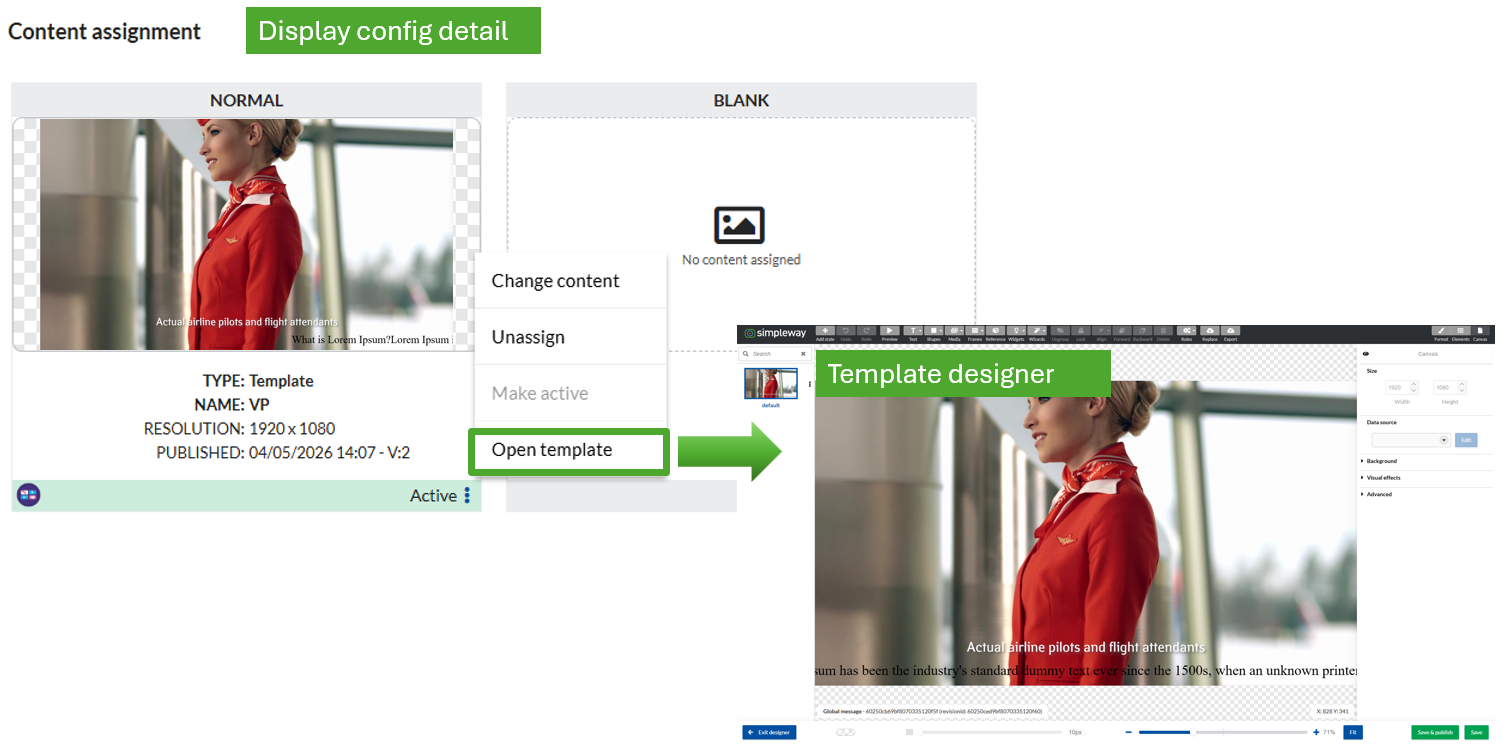
On the display configuration detail it is possible to access directly the assigned template in the Templates tab. This enables user to access the correct template without remembering long template names.
Display and content Match column
The new Match column indicates whether the resolution of the display device and the assigned content (template or media) have the same resolution or the resolution is not fully matching. The new column
Column width adjustments

8.Audio improvements:
Live view of micnode2 in audio device detail
The Audio devices detail page now includes a live view for nnounce micnode2h and micnode2g microphone stations. This lets users to start live view directly from OpsUI. It works through a secured proxy and a dedicated read-only role, so the device screen can be viewed safely from within OpsUI.
Queue items for Live calls from VPS
Live calls from a Q-SYS Virtual Paging Station (VPS) appear as queue items. The call audio loads from the Q-SYS core and is stored with each queue item.
Audio bus - refurbish grouping layout
Improved visibility of group and device names in the audio bus: the name now stays visible when a group is expanded to show its individual inputs and outputs, making it easier to tell which group you're working in.
Queue items have improved multi-location support
Announcements paged to multiple stations (ground transportations) create one parent queue item and child queue items for each station. This enables better visibility, control and auditing for announcements targeting many endpoints.
Q-SYS integration compatibility improvements with version 10
9.Speech-to-text and visual paging in GateUI
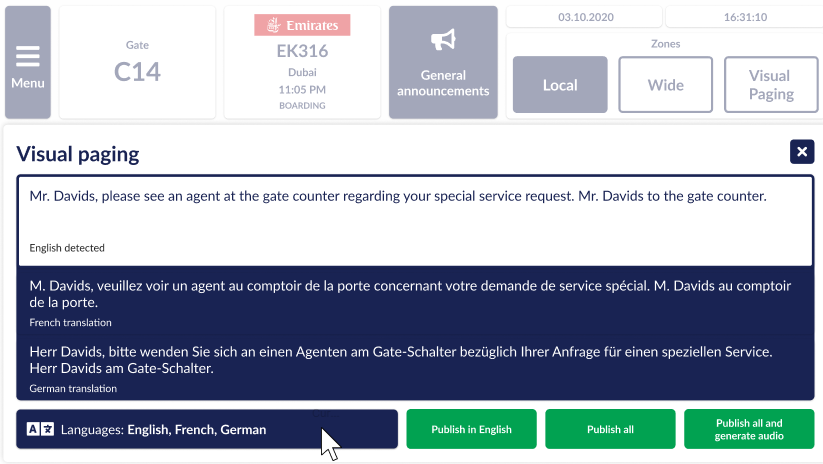
The Speech-to-Text feature lets an operator make a spoken live announcement and have Airport CX automatically turn it into editable text, translate it into multiple languages, and push it back out as both audio (text-to-speech) and visual paging on displays.
This means with AI we are able to:
transcribe the original live call from a microphone station then
translate the original message to selected languages and
create text-to-speech announcement of the translations and
show the original as well as the translation as visual paging messages on your displays.
See tutorial - Speech-to-Text with Visual Paging and AI translations
Software release September 2026, release version 7.16