You can build your own UCI (User Control Interface) in Q-SYS Designer and use it as the touchscreen interface on your micnode paging station, in place of the built-in menu.
First create the UCI in Q-SYS Designer. When you design it, remember that the paging station's screen runs at 1920x1080 (FHD). Then copy the UCI's URL and add it in the paging station's external application configuration (covered in the previous chapter).
Note: once a microphone station is set to show a UCI, the only way back to the built-in menu, or over to a different UCI, is to open the station configuration remotely from a web browser.
Curious how the rest of the nnounce range works with Q-SYS?
See nnounce for Q-SYS.
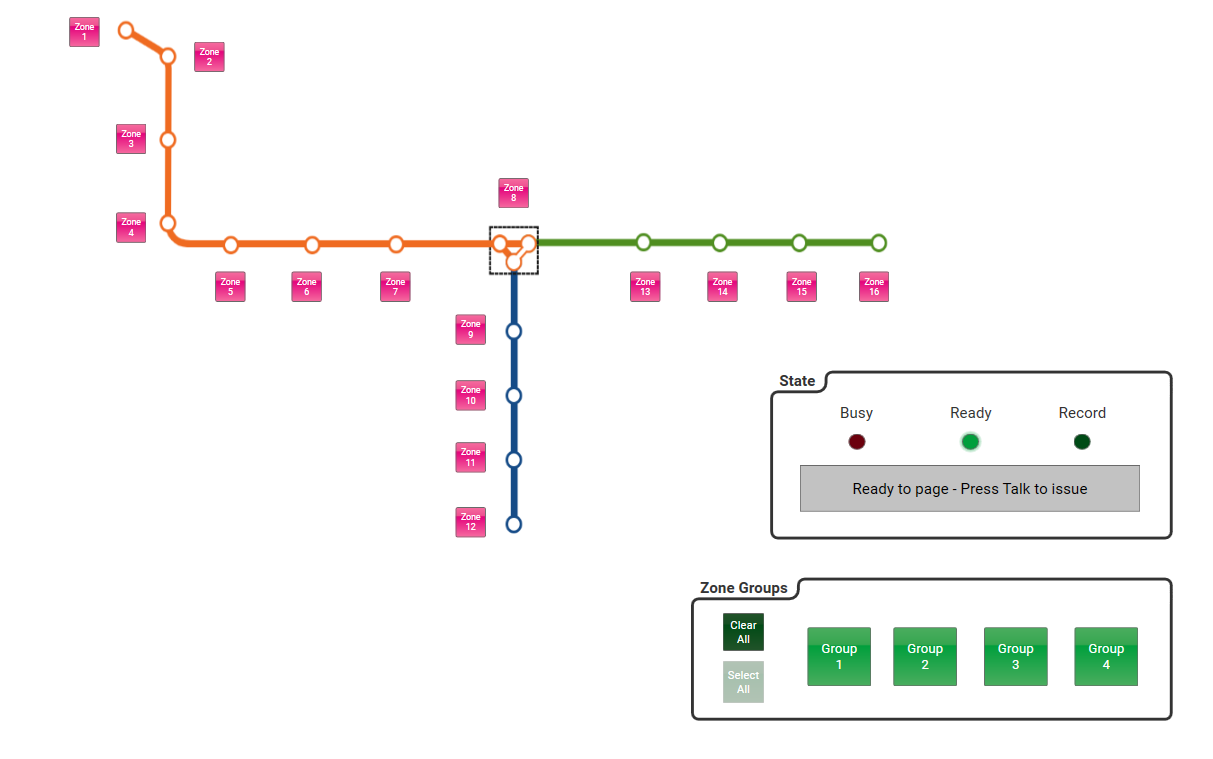
Sample screen:
TUTORIAL STEPS:
A) Search for UCI in Q-Sys Core Manager
|
|
B) Get URL of the selected UCI
|
|
C) Insert the URL in the Micnode paging station in the External application configuration. For more details see External application configuration. |
|
.JPG)
.JPG)

FAQ
What is a Q-SYS UCI?
A UCI (User Control Interface) is a custom control screen you build in Q-SYS Designer. On a micnode paging station, it can replace the built-in menu on the touchscreen. Learn more about how nnounce works with Q-SYS on the nnounce for Q-SYS page.
What screen resolution should I use when I design the UCI?
Design the UCI at 1920×1080 (Full HD). This is the resolution of the paging station screen.
Which nnounce paging stations can show a Q-SYS UCI?
Touchscreen paging stations can show a UCI. This includes the micnode2h handheld station and the micnode2g gooseneck station, which both have an 8” touchscreen. See all models on the microphone stations page.
Where do I find the URL of my UCI?
Open Q-SYS Core Manager and go to the User Control Interface section. Select your UCI, click “Open UCI in New Window”, and copy the URL from the new window.
Where do I add the UCI URL on the paging station?
Add it in the paging station’s external application configuration. Step by step instructions are in External application configuration.
How do I switch back to the built-in menu or use a different UCI?
After a station is set to show a UCI, you can only change this remotely. Open the station configuration in a web browser and change the external application settings there.
Do I need extra software to connect nnounce devices to Q-SYS?
No. Every nnounce device comes with a dedicated Q-SYS plugin, and the devices appear as native components in Q-SYS Designer. See nnounce for Q-SYS and nnounce compatibility.